Add and remove Osprey packages in VS Code
Open Osprey: Manage Packages from the Command Palette. The package workspace lets you browse the configured registry, inspect a package and change your project's dependencies without leaving VS Code.
Open your project's packages
Open a trusted project containing osprey.toml. Save or revert edits to the manifest and lock before changing dependencies. The extension must include its matching package client and workspace application; package commands work with the language server disabled.
Run Osprey: Manage Packages with Command+Shift+P on macOS or Ctrl+Shift+P on Windows/Linux. In a multi-folder window, choose the project to change. Check the project shown in the workspace before adding or removing anything.
The registry connection is configured through osprey.packages.registry. This walkthrough starts with that connection already set up. Registry administration and source-build commands belong in the package-manager guide.
Browse the catalog
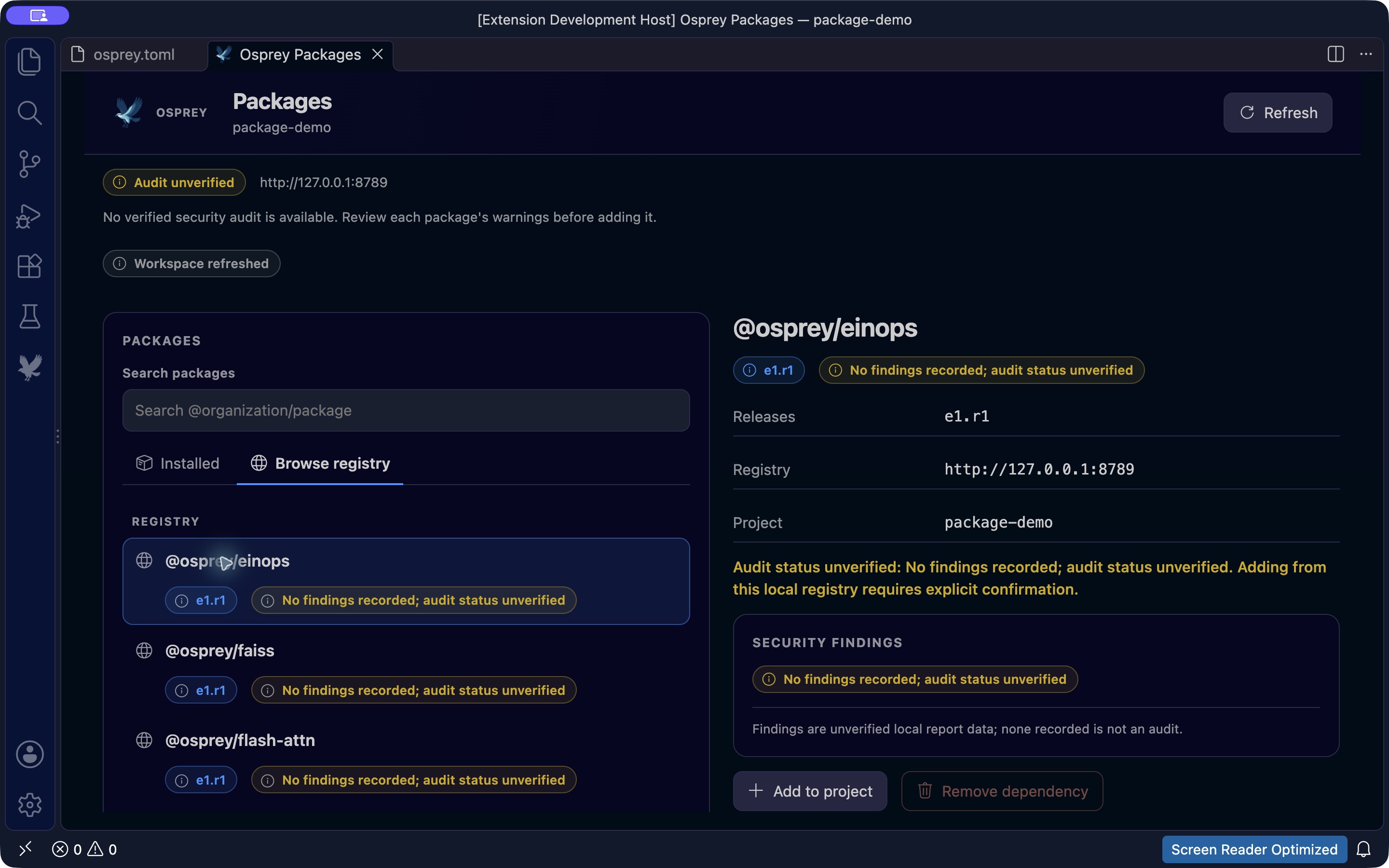
Choose Browse registry to view available packages. Scroll through the catalog or filter by name. Package identities include a scope, such as @osprey/numpy; the same leaf name can occur under different scopes.
Select a package to inspect its release and security findings. A release identifier such as e1.r1 means epoch 1, release ordinal 1. The lock records exact releases and source digests.
Add a package
- Select the package in Browse registry.
- Review its release and security findings.
- Choose Add to project.
- Read the confirmation, check the package and project, then confirm the addition or cancel.
- Open Installed to inspect the resulting dependency graph.
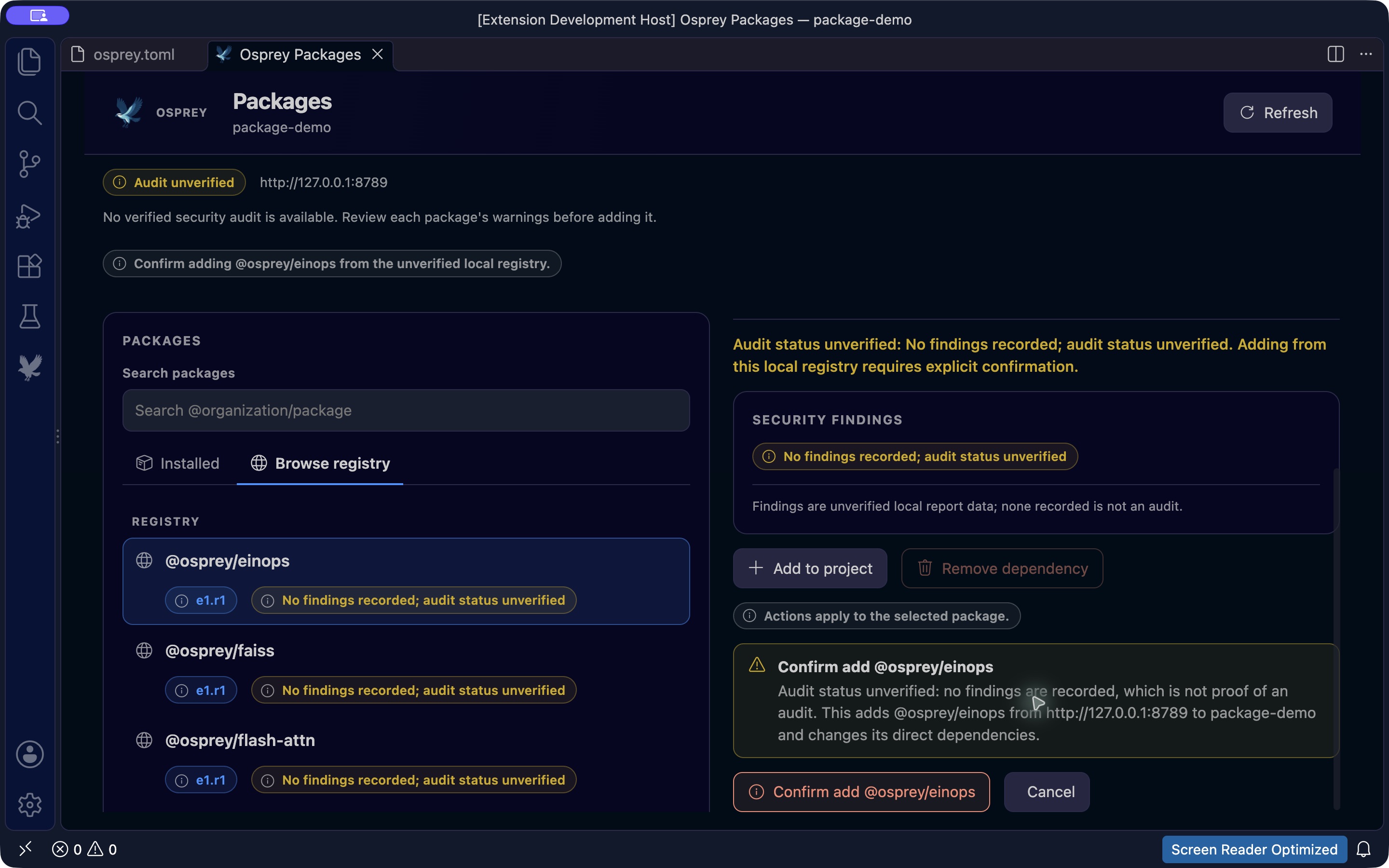
An unverified audit status means there is no authenticated audit evidence. An empty findings list does not establish that a package has been audited. Resolve reported blocking findings before proceeding; the interface can refuse an addition when its security requirements are not met.
The workspace updates osprey.toml, resolves osprey.lock, then fetches and verifies the locked sources before refreshing Installed. A failed download or verification remains an error. Commit the manifest and lock together. The CLI exposes these steps separately; see fetching and locked builds.
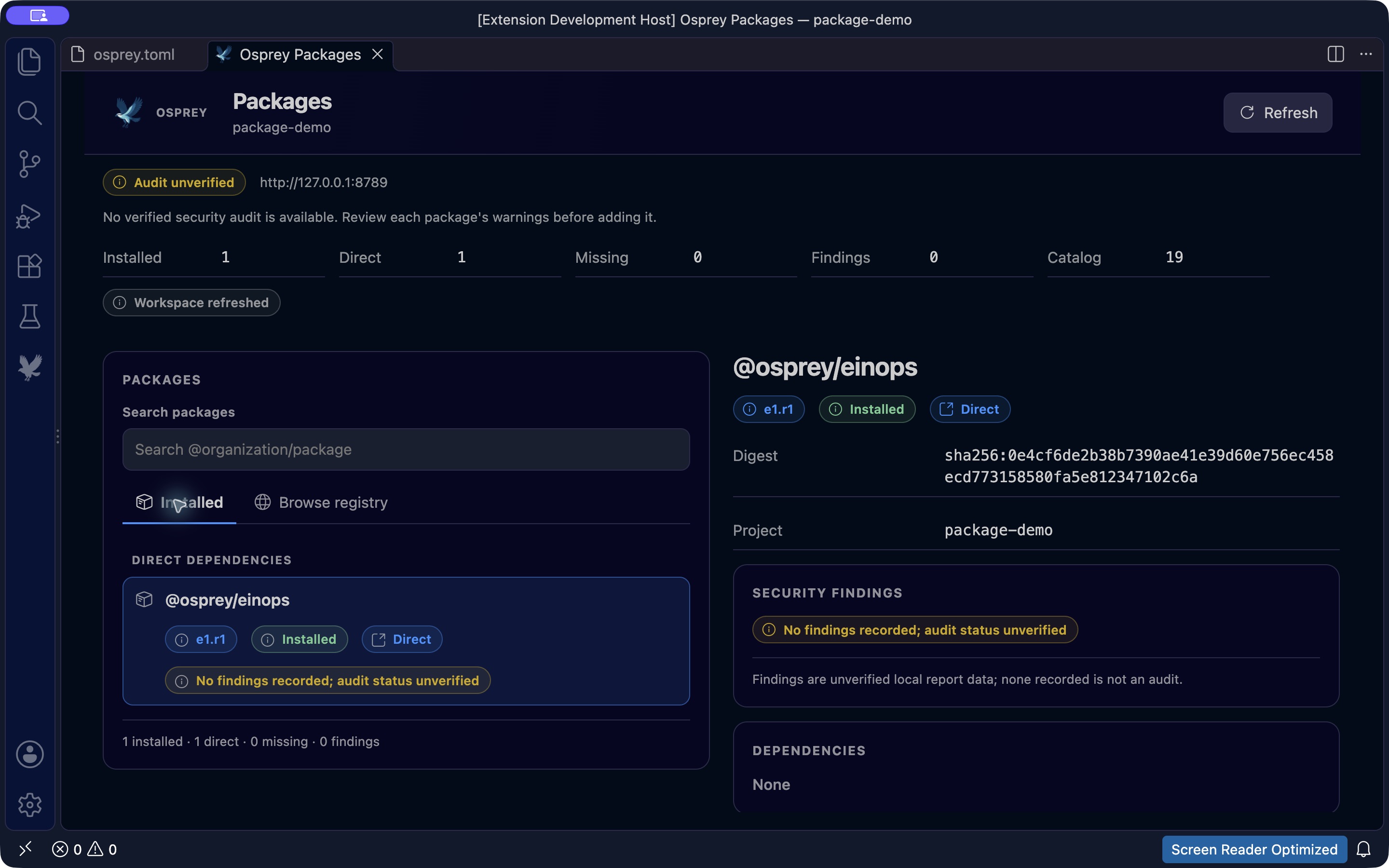
Digest verification detects changed source; it does not establish publisher identity or benign code. Raw native extern declarations remain a confinement gap. Read the supply-chain boundaries before relying on untrusted dependencies.
Remove a package
Select a direct dependency in Installed, choose Remove dependency, then review and confirm the removal. The client removes the declaration and relocks the remaining graph. Update any source imports that used the removed package.
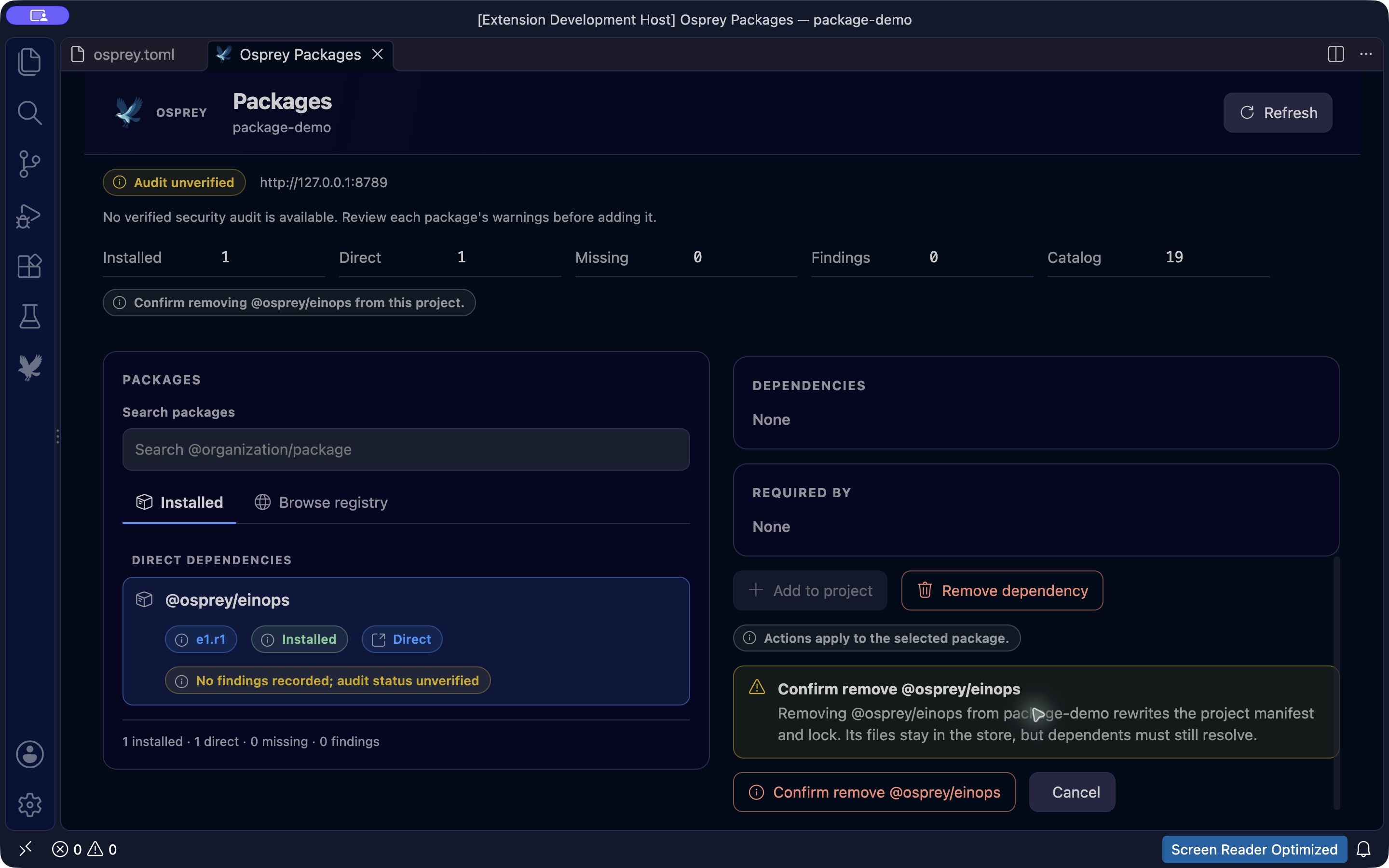
A transitive dependency belongs to another package's requirements. Inspect Required by before changing the graph; it is not an independent direct dependency to remove.
When package data is unavailable
A loading or failed request does not establish that the project has zero packages or no security findings. The workspace must report the failure rather than present unknown data as a clean result.
If an Add operation is interrupted during relocking, its dependency declaration can remain in osprey.toml without a matching lockfile. Inspect both files and restore the intended dependency declarations before retrying; do not assume the interrupted change rolled back.
Check the registry connection and extension installation, then choose Refresh. Save or revert unsaved manifest and lock editors before retrying a mutation. The current release and platform limits, including hosted publishing and audit-service availability, are documented in the package-manager guide.
Video transcript
- Open the Command Palette and choose Osprey: Manage Packages.
- Browse registry shows the available Osprey packages. Scroll through the catalog, or filter it by package name.
- Select a package to inspect its release and security findings. Unverified means there is no authenticated audit evidence.
- Choose Add to project, review the confirmation and confirm. Switch to Installed to see the dependency in your project.
- To remove it, select the direct dependency and choose Remove dependency. Confirm the change.
- The Installed view updates to show the remaining dependencies. Add and remove packages without leaving VS Code.